Be careful when comparing DVRs We see a lot of misleading information when it comes to DVRs. An example of this is supposedly high-definition 1080P DVR recorders which only actually record in standard definition. Because the HDMI or VGA output is 1080P they have advertised accordingly. The on-screen menu will be nice and clear but the live images and recorded footage will be in standard definition. We also see lots of examples where misleading recording times are quoted. The compression codec on most DVRs is H.264 so there is no magic way to extend recording times other than to reduce quality. The higher the resolution you record the less storage time you get from your hard drive. A lot of people quote storage times based on the lowest possible recording resolution but users naturally select the highest possible resolution. We also see recording times based on motion-only event recording. This is extremely misleading and essentially a made-up number as you have no idea how many events will be triggered. We always recommend 24/7 recording with events just used to bookmark potentially important footage. DVR recorders can be quite complicated and there is a lot to get your head around. It is important that there is aftersales support available. When you purchase from a large organisation that sells lots of different products like eBay, Amazon or multinational retailers getting support can be difficult due to the many different models they sell. We pride ourselves in offering superb after-sales support via knowledgeable specialists, not call centre operatives reading off a script.
Using a computer instead of a DVR
People often ask us if they can save money and use their computers for CCTV rather than buying a separate DVR. There are a number of reasons why we don’t recommend this. A DVR runs for 24 hours a day constantly sending information to the hard drive. A computer is only designed to run intermittently with relatively long rest periods. To run a CCTV system your computer would need to run 24 hours per day 365 days per year. If the extra workload causes your computer to fail you will stand to lose work and information stored on it, not just the CCTV footage. We fit specific AV-grade hard drives into our DVRs, not computer drives. Video data takes up a large amount of processing power and storage space. You could experience performance issues caused by the extra processing strain. Often the first thing to be stolen in theft is computer equipment. A stand-alone DVR can be sited in a secure location. The software and capture card required to use a computer for CCTV costs money. It’s not hard to spend the price of a stand-alone DVR on them, so you might not be saving money for a potentially inferior solution. If you choose to fit IP cameras and use your network storage device or NAS it will massively increase the workload on what is probably there to back up all your computer files and data. CCTV will not only swamp the storage capacity but could also cause premature failure with the loss of all your files.
Backing up footage from a DVR
If you have captured something on your CCTV that you want to keep for reference or to use as evidence then you will need to make a copy or backup. With our DVRs, you have 2 options. Backing up directly from the DVR using a USB memory stick There is a USB port on the front of the DVR into which you insert the memory stick. Using the on-screen menu and supplied mouse you first search for footage and then make a backup directly onto the memory stick. Backing up over a network or the internet If you connect your DVR to a network such as your internet router you can then access it remotely via computer either over your local network or the internet. As well as being able to view live footage you can make backups directly onto your computer. This means you don’t have to be on-site and you can also make backups if the DVR unit is tucked away in a secure location.
Recording modes
Recording Modes – all our DVRs can be set to record in a number of ways: Continuous This is our recommended recording method. The DVR records all the time, when the hard drive fills up it goes back to the start and records over the earliest footage on a rolling basis. Motion Sensing The DVR monitors the picture coming in from the camera. If it sees movement then it starts recording. You can choose which areas of the screen the DVR looks for movement in, you don’t have to use the whole screen as a trigger area. We don’t recommend using only motion-triggered recording. There is a risk you will miss vital footage and what happened in between the gaps? Imagine you have ordered something off the internet and on arriving home after work it isn’t where you expected it. You call the delivery company who tell you they delivered it at 1.30 pm but your motion-only CCTV system doesn’t have any footage. The delivery company said it must have missed the event or not been working properly and it is very little you can do. If you record 24/7 you will be able to guarantee no delivery was made because you have footage covering the whole time period so we know the system was working correctly. You can use motion triggering to generate “bookmarks” within the 24/7 recording to quickly identify potentially important events that might have taken place without having to trawl through hours of footage. Our DVRs allow you to use both methods side by side. Alarm triggered The DVR starts recording when triggered by an external sensor such as a PIR (passive infrared) motion sensor or magnetic contact “reed switch”. This method is reliable in terms of not generating false triggers but involves additional wiring and sensor hardware. Scheduled You can decide what type of recording takes place at various times throughout the day and on particular days of the week. This helps reduce the amount of space taken up on the hard drive but the downside is if an event occurs when the DVR is scheduled not to record you will miss it.
CCTV DVR hard drives
Hard drives – the modern-day CCTV video cassette All DVRs store their footage on an internal hard drive. Most use a SATA hard drive, this stands for Serial Advanced Technology Attachment and is the method by which the hard drive connects to a device. Computers also use a SATA hard drive but DVRs and computers are different. Unlike a computer, your DVR is designed to run 24 hours a day with constant data transfer onto the hard drive. For this reason, it is important that you use AV grade drives specifically designed for a DVR rather than standard computer drives which have a tendency to fail prematurely. We sell hard drives separately to the DVR because storage requirements vary between customers. If you purchase a DVR and a hard drive from us at the same time we will fit the drive into your DVR, format the hard drive for you and then configure the basic settings of the DVR so it arrives plug & play. This saves you time and means everything works properly out of the box. How many days of footage will my CCTV hard drive store? There are a number of factors that will determine this. The main things to consider are: Recording quality. The higher the quality the less time a given hard drive will record for. 4K produces 5 times more data than HD 1080p. The number of frames per second you record at. This is something you can change without compromising your CCTV system. See the section covering real-time DVRs. The number of cameras you have on your system. Each camera requires space for its footage to be stored. Length of time footage is stored on our 4K IP NVR recorders at 6 frames per second using the H.265 codec. Number of cameras Hard drive size Storage time (days) 4 4 TB 16 4 6 TB 24 8 6 TB 13 8 8 TB 16 16 12 TB (2 x 6TB) 13 16 16 TB (2 x 8TB) 16 Tip Because of the amount of storage required for recording 4K images it may be worth considering the the 2K camera range for short range or less essential areas where a general overview can be used rather than detailed identifying footage.
The DVR in History
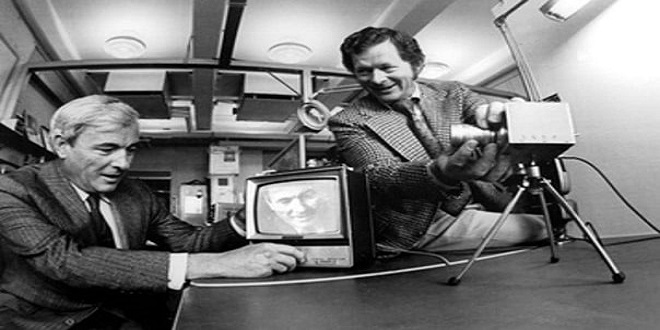
The Evolution of CCTV DVRs: From Video Cassettes to Smart Surveillance Introduction: Why Understanding DVR History Matters For anyone researching CCTV systems—whether upgrading existing infrastructure or exploring new installations—understanding the history of the Digital Video Recorder (DVR) offers valuable insight into how far surveillance technology has come. From clunky video cassettes to intelligent, motion-triggered recording, the DVR has evolved into a cornerstone of modern security. The Analog Origins: Video Cassette Recorders in CCTV Before digital storage, CCTV relied on video cassette recorders (VCRs). These analog systems recorded footage onto magnetic tapes, typically in real time. While revolutionary at the time, they came with major limitations: Short recording durations (usually 2–6 hours per tape) Manual tape swapping and labelling Degrading image quality over time Limited searchability and playback options Despite these drawbacks, VCRs laid the groundwork for continuous surveillance and incident review. Multiplexers: Managing Multiple Camera Feeds As surveillance needs expanded, so did the number of cameras. Enter the multiplexer—a device that allowed multiple camera signals to be displayed on a single monitor or recorded onto one tape. Multiplexers introduced: Split-screen viewing for simultaneous monitoring Sequential recording to maximize tape usage Time-stamped footage for easier incident tracking This was a game-changer for businesses and institutions needing multi-camera coverage without investing in separate recorders for each feed. Time-Lapse Recording: Stretching Tape Capacity To extend recording times, CCTV systems adopted time-lapse VCRs. These recorded fewer frames per second—sometimes just one frame every few seconds—allowing a single tape to capture up to 24 hours of footage. Benefits included: Reduced tape usage Lower operational costs Basic event detection However, time-lapse footage often lacked clarity, making it difficult to analyze fast-moving incidents or subtle details. The Digital Leap: DVRs Redefine CCTV The late 1990s saw the rise of the Digital Video Recorder (DVR), which digitized the entire recording process. This marked a seismic shift in CCTV capabilities. Modern DVRs offer: Hard drive storage for weeks of footage Motion-triggered recording to save space and highlight activity Remote access via internet or mobile apps Searchable archives by date, time, or event These features transformed DVRs from passive recorders into intelligent surveillance hubs. Smart DVRs and Hybrid Systems Today’s DVRs are smarter and more versatile than ever. Many support both analog and IP cameras, allowing gradual system upgrades without full replacements. Advanced features include: AI-powered analytics (e.g., facial recognition, object tracking) Cloud backup for added security Mobile alerts and remote control Encrypted access and cybersecurity protocols These capabilities make DVRs suitable for homes, shops, warehouses, and large-scale commercial environments. Choosing the Right DVR: Lessons from the Field At CCTV42, extensive product testing revealed a common issue: many DVRs overpromise and underdeliver. That’s why the company focuses on a single, high-functionality range that balances simplicity with advanced features. Benefits of this approach: Streamlined user experience Reliable performance Expert after-sales support No unnecessary complexity This ensures customers get a system that works—without the frustration of navigating unused or confusing features. The Future of DVRs: Beyond Local Storage While DVRs remain central to many CCTV setups, the future points toward Network Video Recorders (NVRs) and cloud-based surveillance. These offer: Greater scalability Integration with smart platforms Real-time analytics and alerts Still, DVRs continue to thrive in environments where local storage, cost-efficiency, and reliability are key. The DVR’s journey—from analogue tapes and multiplexers to smart, searchable systems—reflects the broader evolution of surveillance technology. Whether you’re a homeowner, business owner, or installer, understanding this history helps you make informed decisions about your security setup.
What does H.264 and H.265 mean on a DVR?
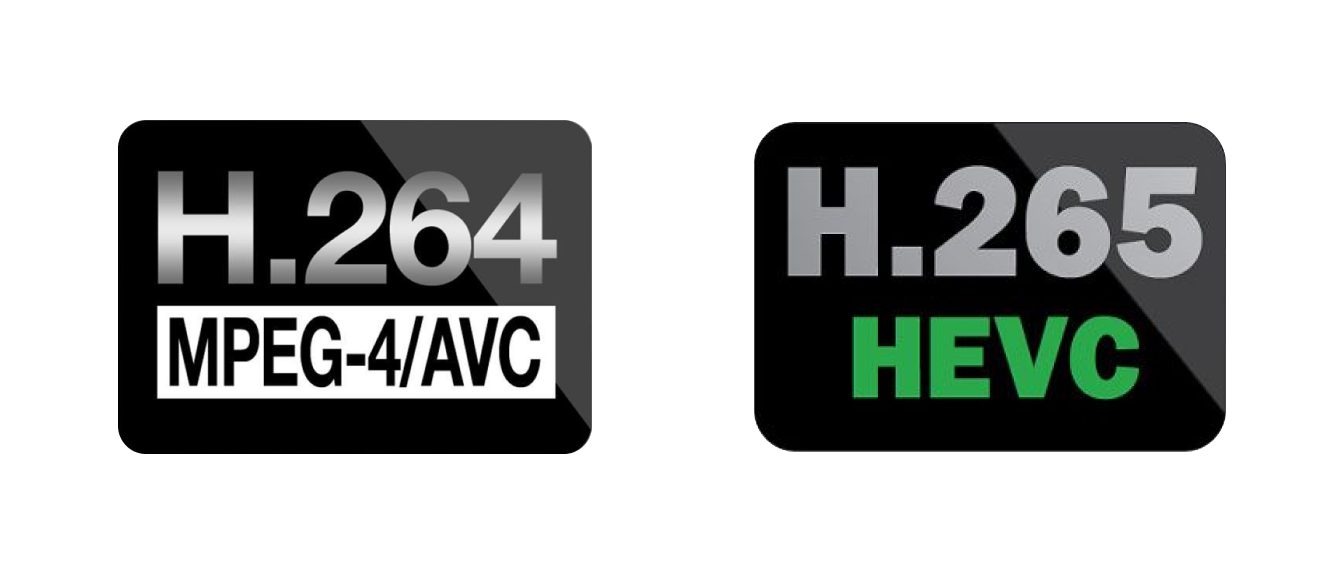
H.264 (Advanced Video Coding) H.264 is the long-standing standard in CCTV video compression, known for its balance between quality, file size, and compatibility. It works by dividing video frames into macroblocks (typically 16×16 pixels) and using inter-frame prediction to reduce redundant data across frames. This results in efficient compression without sacrificing too much image clarity. For most HD CCTV systems, H.264 remains a reliable choice due to its widespread support across recorders, cameras, and playback devices. It’s particularly useful in installations where hardware compatibility and ease of integration are priorities. While it doesn’t compress as aggressively as newer codecs, its stability and broad adoption make it ideal for legacy systems and general surveillance needs. H.265 (High Efficiency Video Coding) H.265 is the next-generation codec designed to handle higher-resolution CCTV footage with greater efficiency. It replaces macroblocks with Coding Tree Units (CTUs), which can be up to 64×64 pixels, allowing for more flexible and precise compression. This results in up to 50% smaller file sizes compared to H.264 at the same video quality — a major advantage for systems recording in 4K or storing large volumes of footage. H.265 also improves motion compensation and supports parallel processing, making it more efficient for modern surveillance environments. However, it requires more processing power and may not be supported by older hardware. For new installations focused on high-resolution imaging, long-term storage, or remote streaming over limited bandwidth, H.265 offers a future-proof solution.
Remote access your DVR over the internet
Networking your CCTV system All our DVR recorders can be remotely accessed over the internet using a computer or mobile device such as an iPad or iPhone. They can also be accessed locally by computers on the same network. It is even possible to view images from DVRs at different locations on the same computer screen using our free CMS software. If you fit our PTZ (pan – tilt – zoom) cameras they can be controlled remotely via our DVRs. Remote access also allows you to make settings changes to your CCTV camera system. You can view recorded footage and even make backups of critical footage when away from the location. Finally, remote access allows us to offer superb technical support. With your permission, we can access your DVR and review your settings to ensure optimum performance. The DVR can even be tasked to email you a picture in the event of a motion-triggered event. Setting up remote access on a CCTV system For DVRs that were purchased prior to June 2017 remote access requires Port forwarding to be set up on your internet router. If this is something you aren’t comfortable doing we offer a remote set-up service where one of our IT technicians can set things up for you using a screen-sharing session. You don’t need a static IP address, we create a DDNS re-routing account for you as part of the set-up service which the DVR can update. Our remote access service is outlined here. For DVRs purchased after June 2017 to the present, we have a guide available to help you set up remote access on a phone or tablet under the common questions section.
Real time DVRs
Beware of real-time DVR recording Many people who don’t fully understand CCTV promote real-time DVR recorders as being a good thing. The single biggest mistake you can make when it comes to DVRs, particularly High definition DVRs is selecting real-time. First of all, what is real-time? When you go to the cinema what you are actually seeing is a series of still images shown so quickly that you think the subject is moving. Cinemas project at 24 frames per second, this is quick enough to trick the brain, and you can no longer make out the individual stills. The problem with using 24 frames per second with CCTV is that it generates too much data for the hard drive to store. This is particularly relevant when it comes to HD and UHD CCTV. You don’t need anything like 24 frames per second. We recommend between 3 and 6 frames per second for CCTV use. This takes up less space on the DVR hard drive without costing much in terms of evidence gathering. To put frames per second into perspective we’ve made a little video. https://vimeo.com/90995234?fl=pl&fe=sh Comparison between 3, 6 & 24 fps from CCTV42 on Vimeo A 2TB hard drive in a 4 channel HD 1080P DVR recording at 6 frames per second gives about 25 days of footage, this would be the same in Ultra HD or 8MP but would require a 8TB hard drive and 4K Recorder. Setting the DVR to record in real-time would lower this down to just 6 days which is obviously not enough.
DVR Recording Resolution
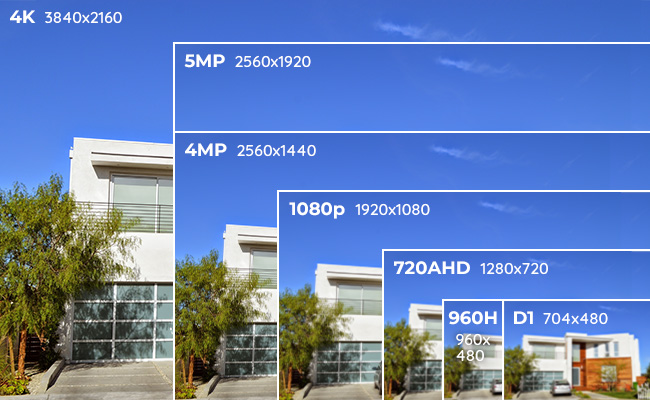
Maximum recording resolution – if you only read one thing on the page read this! There’s no point in producing top-quality images if the DVR is only going to record them at low quality. Our HD DVR recorders are actually hybrid. You can use standard D1 or 960H cameras as well as our HD TVI 1080P cameras. This means you can replace an existing DVR, use your current cameras then add HD cameras over a period of time. In most cases, you will be able to use your existing cabling. We Also have 4K Recorders and cameras which increase resolution up to 8MP. In ascending order of quality, these are the main resolutions Standard definition CIF is the lowest quality used and comprises a frame size of 352 x 288 pixels Half D1, also known as “Field” or 2 CIF is 704 x 288 pixels D1 is 704 x 576 pixels 960H is 960 x 576 pixels. 960H and D1 are actually the same resolutions. D1 has a 4:3 aspect ratio, 960H a 16:9 aspect ratio and the extra pixels fill in the space at the edge of the image. The resolution or pixel density is identical High definition 720P is 1280 x 720 pixels or 0.9 megapixels. This is the lowest HD resolution 1080P is 1920 x 1080 pixels or 2.1 megapixels. All our HD products are 1080P 1080N resolution This is a bit of a con. HD 1080P and HD 1080N sound pretty similar but they are very different. HD 1080P is 1920 by 1080 pixels or 2.1 megapixels. 1080N on the other hand is only 1080 by 960 pixels or 1 megapixel. Don’t get caught out. 3MP, 4MP & 4K Throwing pixels at wide-angle cameras is like trying to heat your home with the doors and windows wide open – you will never win. HD1080P is a high enough resolution to get great images if the cameras are zoomed in properly. 4MP halves your storage time but only gives you a 40% “improvement” in the image. 4K theoretically doubles the quality of the image but needs 8x more hard drive space. 21 days of rolling footage at HD 1080P suddenly becomes a mere 2.6 days in 4K. Not only that but if you use wide-angle cameras you will rapidly get lower-resolution images as you move away from the camera! Be Careful. We see lots of people advertising better than 1080P systems. You might see 3 MP or 4MP cameras offered for example but look closely. Whilst the camera may theoretically be able to film in 4MP the DVR only records in 1080P so they are bending the truth a bit, not uncommon in the CCTV industry. Also to get a material benefit you need to go from 2.1MP (1080P) to 8.4MP, jumping from 2.1MP to 4MP will have little effect other than doubling the amount of data you throw at the hard drive. Far more effective is not using fixed lens wide-angle cameras and zooming in on your subject to increase pixel density whilst still keeping the recording resolution 1080P which is an excellent balance between quality image and longevity of storage. These images show the difference between the CIF and D1 resolutions. 960H recording resolution 960H is usually sold as being a higher resolution than standard D1 but It isn’t. 960H is exactly the same resolution as D1 but with a 16:9 aspect ratio rather than a 4:3 aspect ratio. It’s widescreen standard definition. 960H and D1 have exactly the same recording resolution. https://www.youtube.com/watch?v=XHOmBV4js_E High definition 1080P HD1080P offers a 2.1-megapixel resolution allowing you to increase detail capture or increase the area covered for the same resolution when compared to standard-definition CCTV. Using HD1080P in conjunction with the camera being zoomed in can make for a very effective combination for capturing detailed images. 4K (8MP) Resolution 4K offers a 8MP resolution which greatly increases detail and area covered upto twice that of the HD 1080P